Exhibits by DepoStack user guide.
From your first practice set to files you have checked.
These instructions cover the Preview for Windows and Mac. Read the setup steps, limits, and testing terms before using it.
The screenshots show the v0.2.2 controls with invented practice documents. To save marked PDFs, turn images into PDFs, or reopen a saved set, use the desktop app.
When available, choose your computer on the Preview downloads page. You download directly from this site without a GitHub account. Only approved releases are offered.
Return to the Exhibits product pageChoose a guide.
Practice with sample documents.
The sample matter, people, amounts, and records are invented for practice; none describes a real case.
- Maintenance memo PDF (3 pages)
- Sample invoice PDF (1 page)
- Site photo log PDF (1 page)
Create a matter called “Synthetic facilities matter,” add the three PDFs, and use “J. Ellis” and “A. Reed” for practice identities.
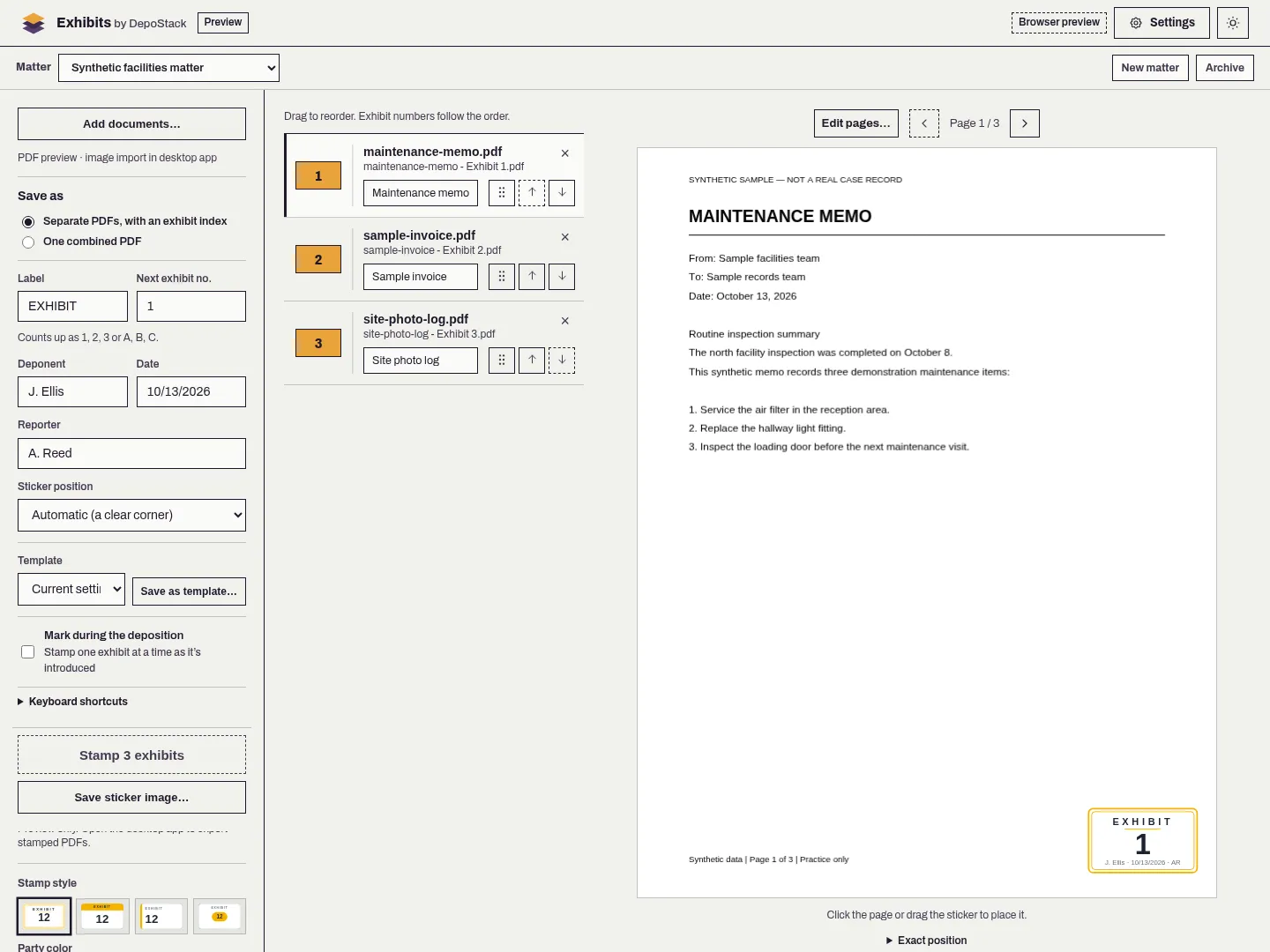
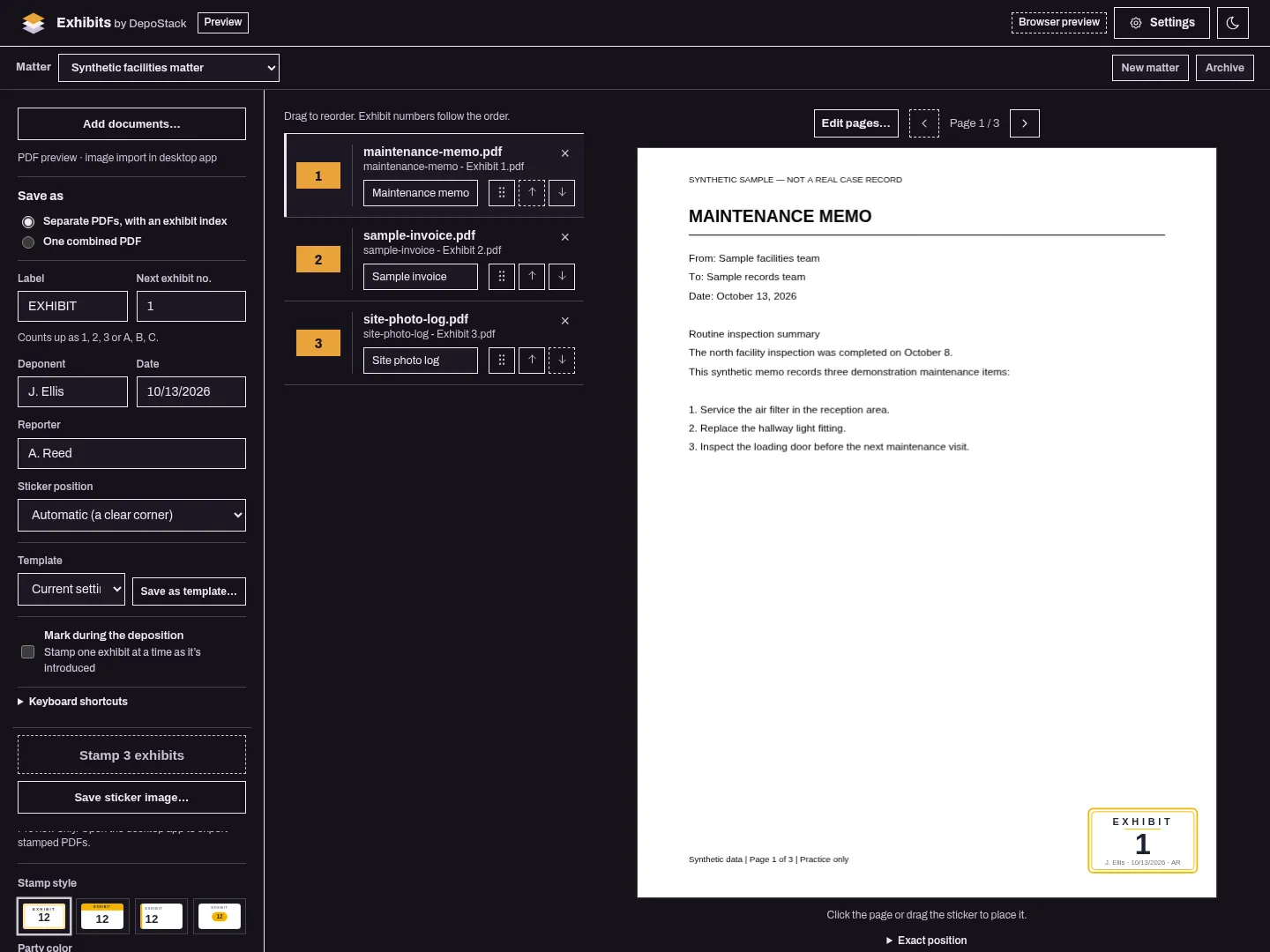
Prepare your first exhibit set.
Start with the practice PDFs below. Use a real matter file only when you are allowed to work with it.
Create the matter
Choose New matter, enter its name, and confirm the next exhibit number or letter before adding documents.
Add the documents
Choose Add documents, select supported PDFs, and put them in order using drag handles or the move controls.
Check the marking details
Check the label, next exhibit number, deponent, date, reporter, descriptions, and party convention.
Place the sticker
Click or drag the preview sticker, or use Exact position and the arrow keys, then check every suggested automatic placement.
Export and review
Choose where to save the new PDFs. Open each one in another PDF viewer, check it, and record your review.
Set the stamp and save a template.
Use the same convention across a set while checking that its wording and placement fit each document.
Choose a style and party
Use Settings → Design or the stamp controls to choose Refined Classic, Header Band, Left Accent, or Number Pill and a party color.
Adjust text and lines
Open Text and lines to choose Compact, Standard, or Large sizing, or adjust individual text sizes, bold text, borders, and divider lines.
Save the setup
Choose Save as template, name the template, and check its settings again when applying it to another matter.
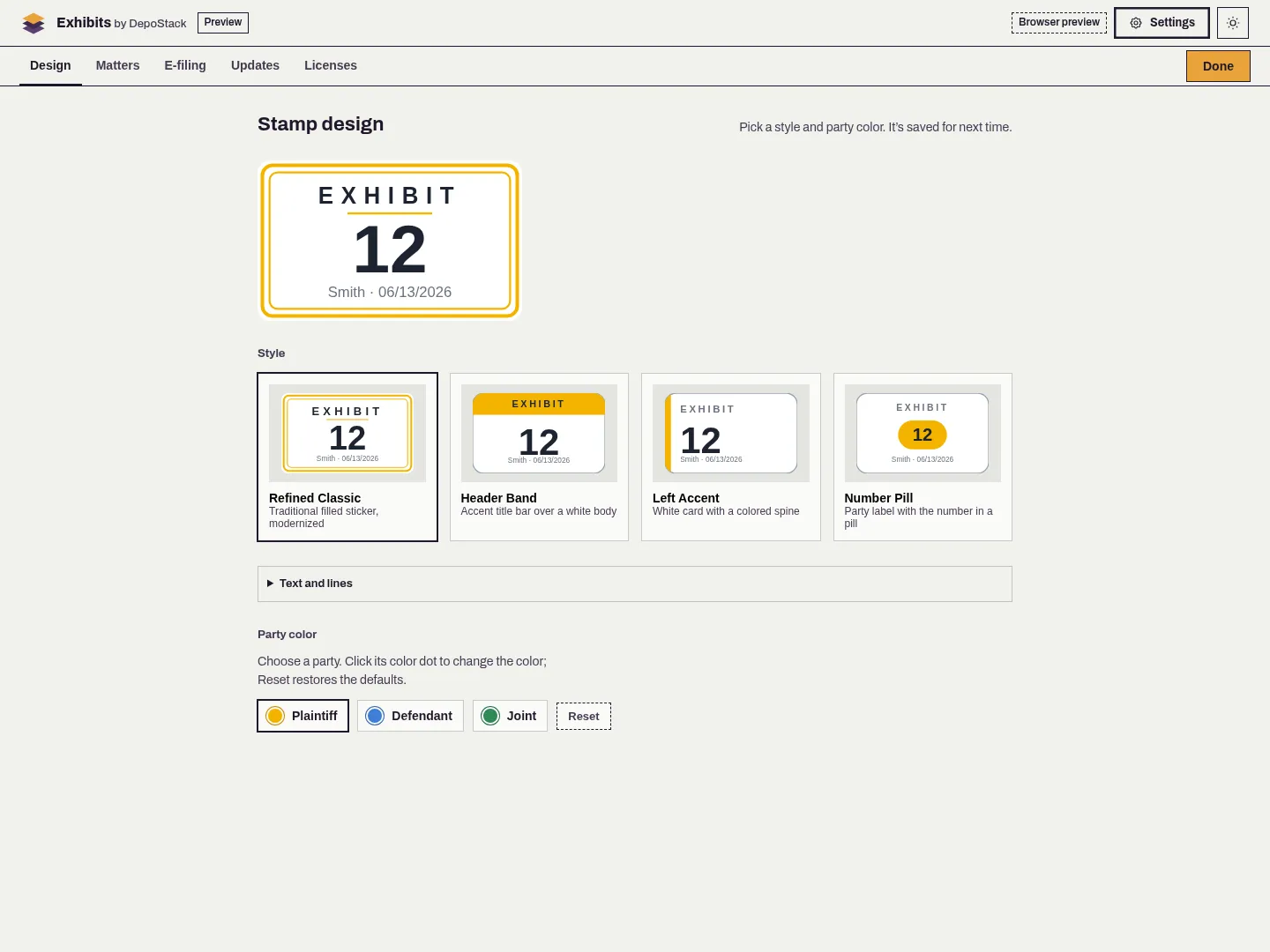
Choose how to mark and save the exhibits.
Choose the options that fit the job. Check the limits before relying on a particular file type or delivery format.
Prepare separate exhibits
For a normal set, choose Separate PDFs, with an exhibit index, and confirm that the order, numbers, and descriptions match the intended index.
Mark during the deposition
Enable Mark during the deposition, choose its output folder, and use J/K navigation and Ctrl or Command plus Enter to mark the selected exhibit.
Combine or split supported PDFs
Choose One combined PDF and whether to stamp each exhibit. To make smaller files, use the split settings; the app keeps each page whole. Check every resulting file.
Check where each exhibit begins
If the app finds divider text and opens binder mode, check where each exhibit starts. Adjust those breaks before keeping one PDF or saving the exhibits separately.
Save other copies
Use Edit pages to save a rotated working copy, Save sticker image for a standalone sticker, or the page-image export for a selected page.
Check the saved files before sharing them.
The app checks the files, but you still need to open them and decide whether they are ready for the job.
Open each output
In the review screen, open each PDF in another PDF viewer. Check the document, sticker wording and position, page order, and where any smaller files begin and end.
Check the index
Compare the saved exhibit index and log with the PDFs. Check reused numbers and document descriptions. The index is a CSV file you can open in a spreadsheet.
Record the review
Record your check of every file. Save the review report if your team needs it; it is a JSON file for software to read. Finish any incomplete review before saving the next set of marked exhibits.
Resume work and preserve the matter record.
Saved sets and backups keep your settings and the locations of your files. They do not contain the original PDFs, so back those up separately.
Choose a saved set to continue
After restarting the desktop app, choose the saved set and resolve missing or changed sources before continuing.
Archive finished matters
Use Archive to retain a matter’s numbering, logs, saved sets, and review history for later access.
Save a backup of your work records
In Settings → Matters, save a workspace recovery backup. Keep it somewhere secure, along with a separate backup of the original files.
Restore into an empty workspace
Review the recovery backup, confirm that the destination workspace is empty, and check its automatic backup. Type RESTORE when asked. Restoring does not combine two work histories.
Known limits and troubleshooting.
File and exhibit-set limits
A set can contain up to 25 PDFs, with up to 1,000 pages in each PDF. The file-size limits are 100 MiB per PDF and 250 MiB per set (about 105 MB per PDF and 262 MB per set). Page dimensions and image types must also pass the app’s checks.
Images and Office files
The desktop app converts supported PNG, JPEG, and multipage TIFF images into saved PDF copies; Word and other Office documents need an authorized PDF copy first.
Scanned binders
If the app cannot find divider text, separate the exhibits in another app and add those PDFs. It does not read text from scanned images or check that every expected exhibit has been received.
Signed or password-protected PDFs
The app cannot use encrypted or password-protected PDFs. The original stays unchanged, but the stamped copy no longer has a valid digital signature or certification.
Flattening and filing rules
The sticker becomes part of the PDF page. Other comments and form fields are not changed into page content. You still need to check the court’s filing requirements; the app does not certify PDF/A, a format used for long-term storage.
Local matters
Matters, templates, sets, and reviews stay on this computer. Backups do not contain the original PDFs or keep two computers up to date with each other.
Incomplete review
Abandoning a review lets you continue working, but does not mark the files as approved. Keep the files and check them under your usual review process.
Unexpected output or recovery errors
Stop and keep the error message and your files. Contact support without sending client documents, passwords, or sign-in links.