Detail A
PDFs and image exhibits
Add supported PDFs or convert PNG, JPEG, and multipage TIFF images into saved PDF copies without changing the originals.
Synthetic data
Prepare the set. Check every saved PDF.
Add PDFs or images, place consistent stickers, and save numbered exhibits with an index. Files are processed on your computer.
Preview for Windows and Mac.
This early version is not digitally signed, so your computer may show an installation warning. Download updates yourself, follow the setup guide, and check every file you save.
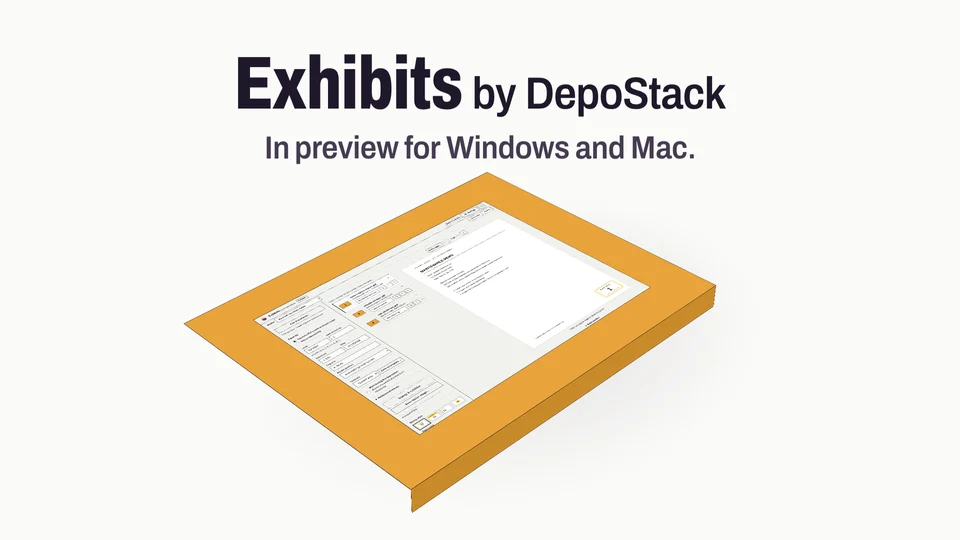
A short look at the actual Exhibits interface. The choices stay visible, and the final review stays with you.
Use full screen to inspect the interface.
Three practice PDFs, one matter, and a starting number you choose.
Compare real Design settings and return to the convention you want.
Change placement and review the PDF pages before desktop export.
In a synthetic facilities matter, three PDFs are queued as exhibits. The operator sets the starting number to 12, opens Design settings, compares Header Band with Refined Classic, returns to the workspace, chooses a lower-left placement, and inspects successive PDF pages. No files are exported in this recording.
In the desktop app, save new copies, check every PDF, and compare the exhibit index before delivery.
Read the output-review guideExhibit preparation moves among PDF tools, numbering by hand, and a separate exhibit log.
Detail A
Add supported PDFs or convert PNG, JPEG, and multipage TIFF images into saved PDF copies without changing the originals.
Detail B
Each matter keeps its own number or letter series, with checks before reusing a recorded document’s exhibit number.
Detail C
Open and check each saved file, then record your review before saving the next set of marked exhibits.
This browser preview shows invented practice documents. Use the desktop app to save marked PDFs.
Software handles the repetitive preparation. You control the numbering, inspect the output, and decide whether it is ready for the job.
Choose from four sticker styles, adjust text and party colors, and save the setup as a reusable template.
The desktop app saves the set’s order and settings, then checks the original files before resuming.
Rotate selected pages or the whole PDF and save a new working copy for the exhibit set.
Save separate PDFs with an exhibit index, combine supported documents, or split large files into smaller parts to check.
The desktop app reads, stamps, and writes exhibit files on your computer without uploading them.
You set the deposition, the party, and the number, then stamp the page. Each stamp enters the log; a number already used is held for you to check.
Synthetic dataSample record, not a real case. The pages are drawn for this demo, and it runs only in this browser.
Page 3 of 8: memo
Memo Sample document
Exhibit3Exhibit 3 stamped. The log has 3 exhibits.
| No. | Party | Witness | Document |
|---|---|---|---|
| 1 | Plaintiff’s | A. Sample | Invoice |
| 2 | Defendant’s | A. Sample | Letter |
| 3 | Joint | B. Example | Memo |
Choose the matter, add supported PDFs or images, and put the documents in the order you intend to number them.
Choose a style or saved template, place the sticker, and check the exhibit number, caption, and party convention.
Save new PDFs, open and check every file, and compare the exhibit index before filing, service, or delivery.
The reporter certifies. The software never does.
Use the same matter and numbering convention whether you prepare a complete set or introduce one exhibit at a time.
Add documents, drag them into order or use the move controls, and check the proposed exhibit numbers before exporting.
Choose an output folder and stamp each exhibit as it is introduced, with J/K navigation and Ctrl or Command plus Enter to stamp.
Click or drag the sticker, enter an exact position, or nudge it with the arrow keys and Shift for larger moves.
Automatic placement proposes a less-occupied position on the page for you to inspect before stamping.
Choose the sticker appearance and save the setup for the next matter, while checking every label and caption yourself.
Choose Refined Classic, Header Band, Left Accent, or Number Pill, with Plaintiff’s, Defendant’s, and Joint party presets.
Adjust label, number, and caption sizes, bold text, border and divider lines, and party colors, then save them in a template.
Work from copies, choose separate files or a binder, and inspect the result before it leaves your desk.
Save numbered PDFs and an exhibit index in the order you choose. The index opens in a spreadsheet, and existing files are not overwritten.
Combine supported documents with or without new stickers, or divide a large PDF into smaller files. The app keeps each page whole while working toward your chosen file size.
Review suggested text-based divider pages, adjust the exhibit breaks, and keep one binder or save each exhibit as its own PDF.
Save a standalone sticker as PDF, PNG, or JPEG, or export a selected PDF page as a PNG or JPEG image.
Keep numbering, unfinished sets, and reviewed output history together on the current computer.
Switch among matters with their own exhibit series, saved sets, logs, and review history, and archive matters you want to retain.
Keep the record of your file checks with the matter and reopen saved PDFs to inspect them. You can also save a review report if your team needs one.
After restarting, choose a saved set to continue. The app checks for missing or changed original documents before letting you proceed.
Save a backup of the workspace records and restore it into an empty workspace. Keep a separate backup of the original PDFs.
Use the guides and practice PDFs to learn how to mark and check exhibits before working with real matter files.
Prepare received PDFs as a matter-based set, review numbering and proposed duplicates, and export an exhibit index for your production team to check before delivery.
Prepare an exhibit set in advance or mark one exhibit at a time during the deposition, with numbering and review in your hands.
Use consistent sticker templates, ordered exhibit sets, and exported indexes alongside your team’s existing filing and delivery checks.
No. Marking is not admitting, and nothing on this page claims court or filing acceptance.
Sticker presets include Plaintiff’s, Defendant’s, and Joint, with editable labels, captions, and party colors.
The sticker becomes part of the page, rather than a label you can drag. Other comments and form fields keep their existing behavior. A PDF editor can still change the page. You must check filing requirements yourself; the app does not certify PDF/A, a format used for long-term storage.
The desktop app converts supported PNG, JPEG, and multipage TIFF images into saved PDF copies. You can also save a standalone sticker as PDF, PNG, or JPEG, or export a selected PDF page as an image.
Saved matters, templates, sets, and reviews stay on one computer. The Preview does not share them or keep multiple computers up to date. Choose one person to manage a matter’s numbering.
Saved matters keep numbering, file locations, templates, exhibit logs, and the record of your file checks. They do not contain the original PDFs, so reopening a set still needs those files. Deleting a matter does not delete source files or exported PDFs.
The Preview is for 64-bit Windows computers with Intel or AMD processors, and Macs with Intel or Apple Silicon processors. When available, download it from this site without a GitHub account. It is not digitally signed, so your computer may show an installation warning. Download updates yourself. The browser demonstration shows the controls; use the desktop app to save marked PDFs.
You can add up to 25 PDFs per set, with up to 1,000 pages in each PDF. File-size limits are 100 MiB per PDF and 250 MiB per set (about 105 MB per PDF and 262 MB per set). Combining and splitting need extra checks, so some PDFs cannot be used.
No. It compares candidate positions and suggests a less-occupied area. You still inspect the page, adjust the sticker if needed, and review the exported PDF.
The app looks for divider text it can read. If it cannot find any in a scanned binder, separate the exhibits in another app and add those PDFs. It does not read text from scanned images or check that every expected exhibit has been received.
The app cannot open Office documents, encrypted PDFs, or password-protected PDFs. First make a PDF working copy you are allowed to use. The original stays unchanged, but the stamped copy no longer has a valid digital signature or certification.
A workspace backup contains matter records, templates, and the record of your file checks. It does not contain the original PDFs, so keep those separately. Restore a supported backup into an empty workspace; it cannot combine work histories or keep two computers up to date.
We plan both online and desktop versions. Exhibits v0.2.2 is a Preview for Windows and Mac. The browser demonstration shows the controls; use the desktop app to save marked PDFs. We will confirm other products’ computer and browser support before testing.
We want you to be able to take your work with you. Before each product launches, we will explain which files you can open and save, where your work is kept, how long it is kept, and what can be deleted.
Before we charge for a product, we will explain its price, how often you pay, how to cancel, and what happens when testing ends. There is nothing to buy on this site today.
One proceeding runs through every layer as one record: the same pages and lines, exhibits, and timecodes.
First-person lessons from modernizing a 45-year-old court reporting firm: what breaks in the field, what reporters ask for, and how to keep their trust.